Welcome to Tabs:
The Art of Letting Go.

Tjimothy Andrew Beesly Schrute
Assistant to the Regional Manager of Information Overload
Tabs is here to help you guard your digital focus, clean out your backlog, and build a guilt-free reading workflow. Think of him as your minimal personal manager for your open tabs.
We all do it. You find an incredible essay, an insightful long-form article, or an essential guide. You tell yourself, "I don’t have time for this right now, but I will definitely read it later."
So you leave the browser tab open. Then you open another one. And another. Before you know it, your mobile browser looks like an unorganized filing cabinet, creating continuous visual noise and mental friction. Leaving tabs open forever is a passive promise we rarely keep. It creates a backlog that induces guilt rather than learning.
Tabs is designed to completely break that cycle. Here is a quick guide to mastering your new, clutter-free reading flow.
1. Clear Your Brain, Not Just Your Tabs
The moment you see an article you want to save, send it here and close the browser tab immediately. By offloading the link into a dedicated space, you give yourself an immediate sense of relief without the underlying anxiety of losing the content forever.
2. Understand the Clock
Every item saved to Tabs has a strict expiration deadline (by default, 7 days). This is where the magic happens. Urgency forces a choice. When a tab is nearing its final hours, you either read it in our clean, distraction-free reader mode, or let it expire peacefully out of sight. Either way, your main queue stays immaculate.
3. How to Save in 1 Tap (The iOS Share Sheet)
You don't need to manually copy and paste links. You can save content natively from any browser or app using the system Share Sheet:
- Step 1: Open Safari, Chrome, or any app with an article you want to save.
- Step 2: Tap the native Share button (the square with an arrow pointing up).
- Step 3: Look through the row of app icons and select Tabs (the yellow icon with the bird face).
- Step 4: Tap save, and immediately close your browser tab.
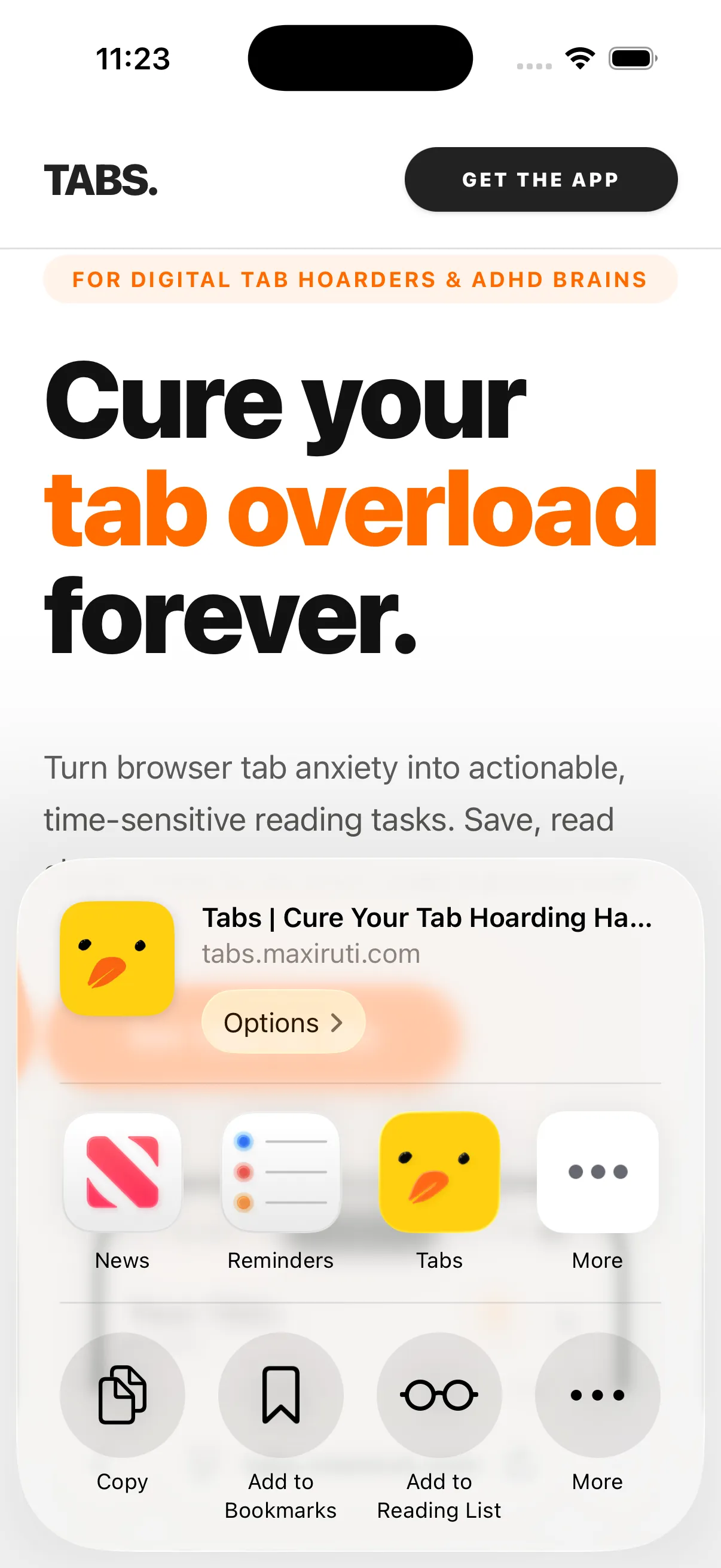
iOS Share Extension
Share from any app directly to Tabs and close that tab immediately.
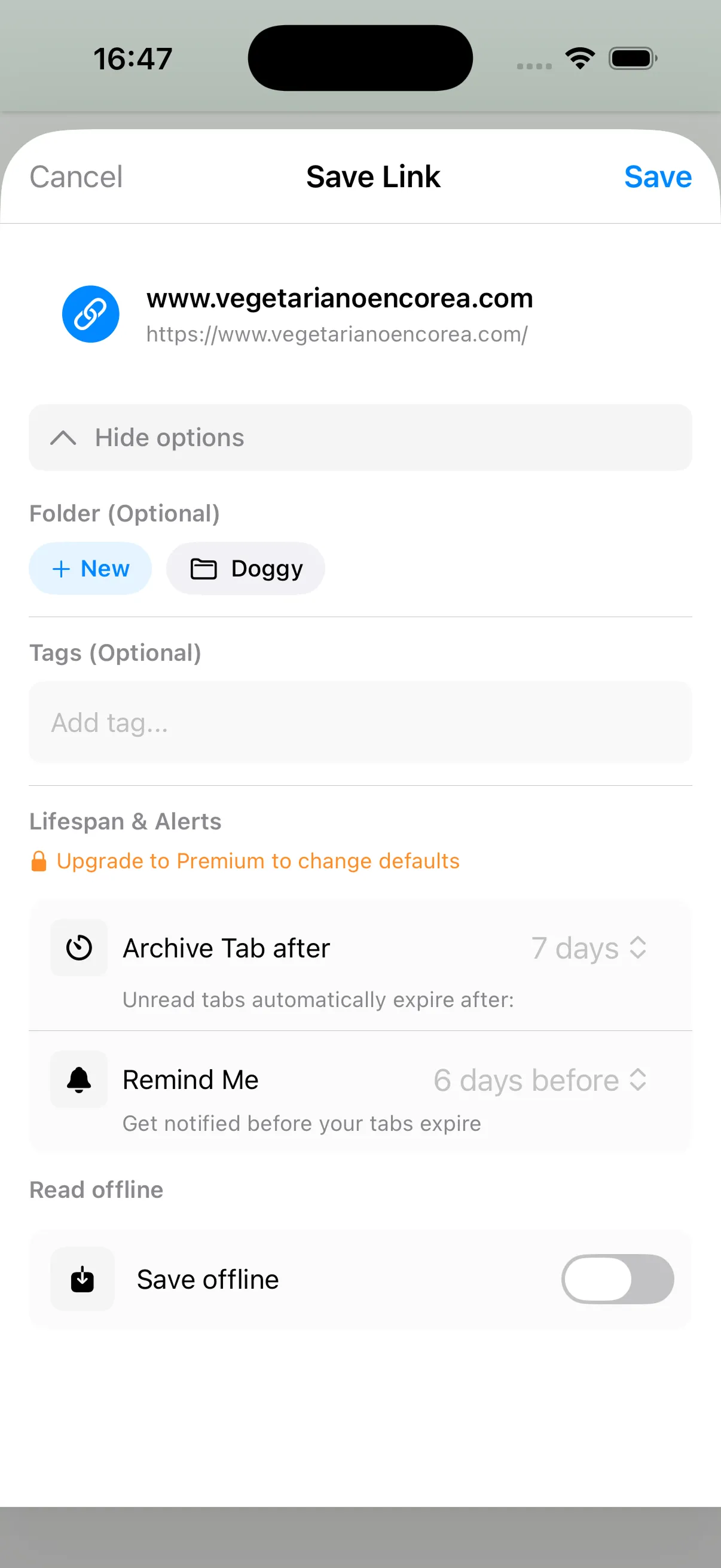
Custom Expiration Setup
Set custom expiration times and organize with tags or folders as you save.
🎉 Your First Mission
Since you have successfully mastered the basics, you can now safely archive this guide. Swipe across this tab or click complete to log your first official activity and kickstart your daily reading streak!